Why I Switched to HDR Recording
For years I recorded gameplay in SDR, but once I upgraded my setup — Apple TV, PS5, and a proper HDR-capable monitor — it became obvious that SDR clips weren’t doing the visuals justice.
HDR brings back the punchy highlights, deeper contrast, and the overall “this is what it actually looks like on my screen” accuracy.
But HDR recording in OBS isn’t plug-and-play.
It took a lot of trial, error, and research to get a workflow that produces clean, YouTube-ready HDR files without washed-out colours or broken metadata.
This post documents the exact settings I now use.
My OBS HDR Recording Setup
1. Video Settings
These settings ensure OBS captures the full HDR signal correctly.
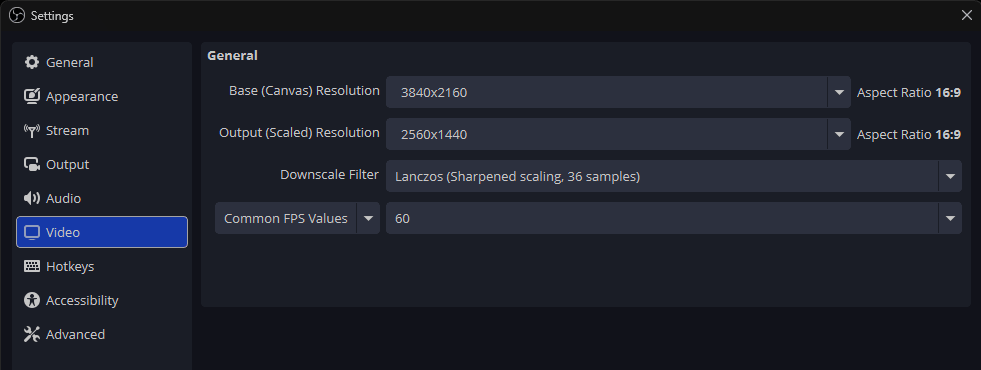
- Base Resolution: Match your monitor (mine is 4K or 1440p depending on the game)
- Output Resolution: Same as base (no scaling for HDR)
- FPS: 60
- Color Format: P010
- Color Space: Rec.2100 (PQ)
- Color Range: Full
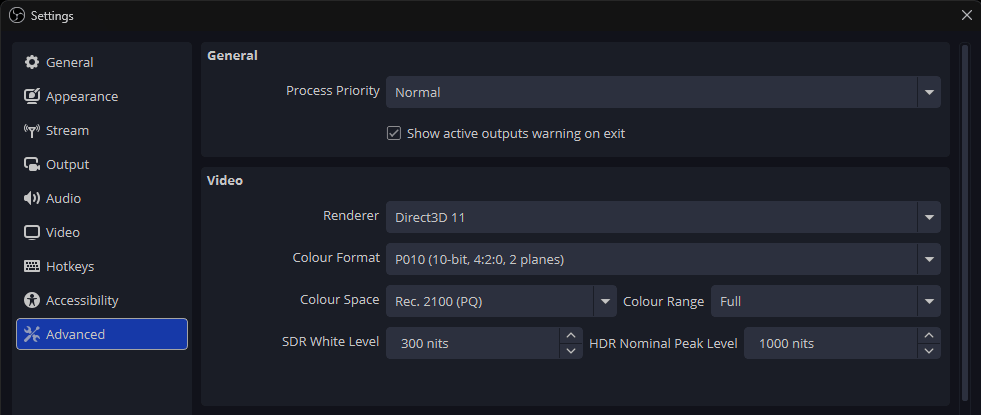
Why these matter:
P010 is the 10-bit format required for HDR. Rec.2100 PQ is the standard HDR curve used by YouTube and modern displays. Full range avoids crushed blacks or clipped highlights.
Note: HDR normally requires matching base and output resolutions because scaling can break HDR metadata.
However, if you use P010 + Rec.2100 PQ and downscale inside OBS, HDR is preserved.
This allows 1440p HDR recording even when the capture card doesn’t support HDR at that resolution.
2. Encoder Settings (NVENC AV1 or HEVC)
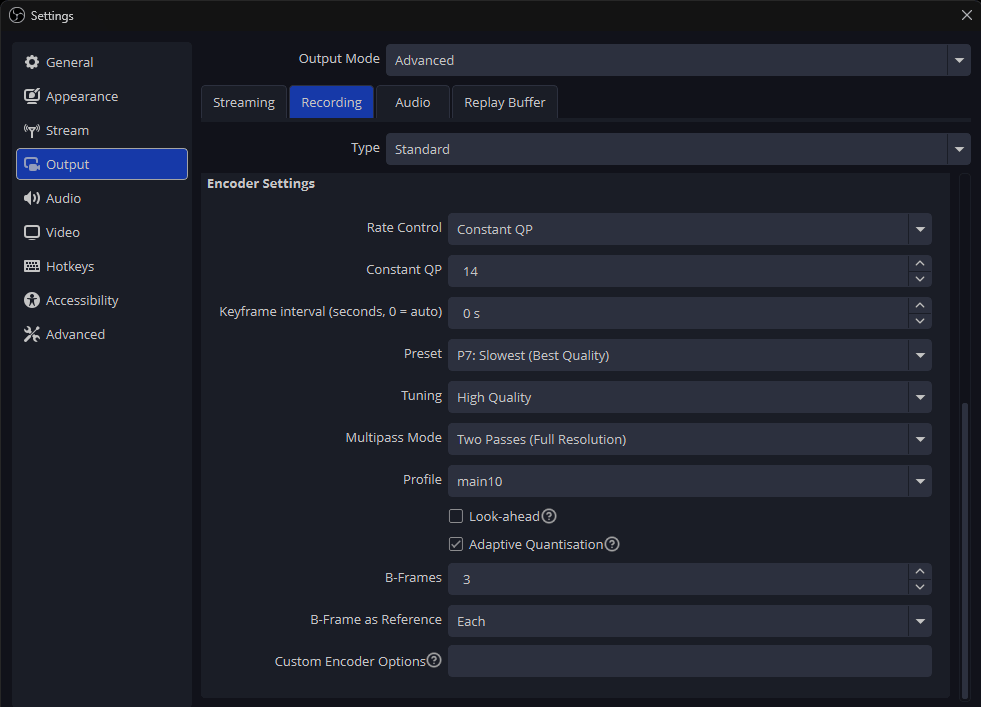
If using AV1 (recommended on RTX 40-series and newer):
- Rate Control: CQP
- CQ: 14-18 (I use 16 for balance)
- Preset: Quality
- Multipass: 2-Pass (Full Resolution)
- Lookahead: Off
- Psycho Visual Tuning: On
- B-frames: 3
- B-frames as Reference: Each
If using HEVC (for older NVIDIA cards):
Same settings as above, but expect slightly larger files and slightly softer detail.
Why these matter:
AV1 gives the cleanest HDR compression today. CQP keeps quality consistent instead of chasing a fixed bitrate. Multipass and PVT help preserve fine detail in dark HDR scenes.
3. Capture Card Settings (Elgato 4K Pro / MK.2)
- HDR: Enabled
- Tone Mapping: Off
- Color Range: Full
- Color Space: Rec.2100 PQ
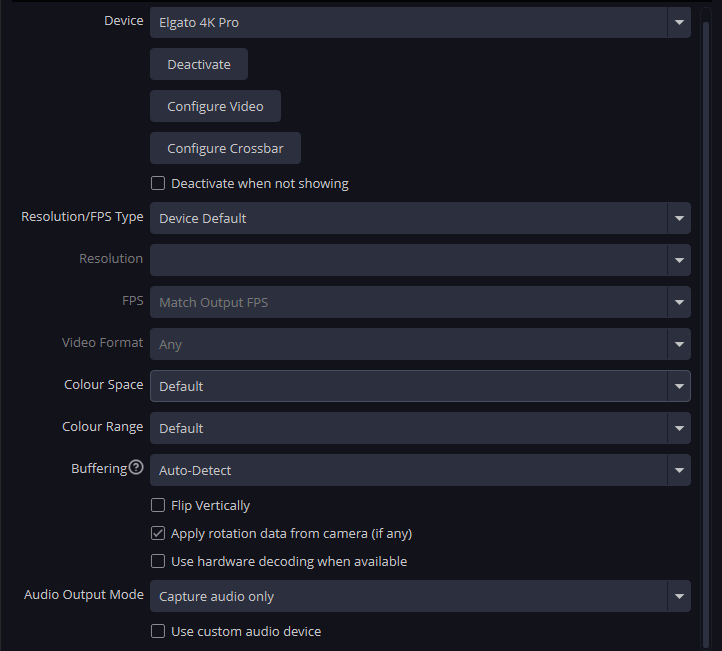
Important: If you’re recording HDR in OBS, Elgato Studio must stay closed. It can interfere with the HDR signal and metadata.
4. YouTube Upload Workflow
YouTube takes longer to process HDR, so don’t panic if it looks washed-out at first. HDR versions usually appear after 20-40 minutes depending on the file size.
I always check:
- The “HDR” badge appears on the video.
- Highlights aren’t blown out.
- Shadows aren’t crushed.
- Skin tones look natural.
If something looks off, it’s almost always a color space mismatch — usually forgetting to set Rec.2100 PQ somewhere in the chain.
Final Thoughts
HDR recording used to feel like a dark art, but once you understand the required pieces — P010, Rec.2100 PQ, 10-bit, and proper encoder settings — it becomes surprisingly reliable.
My current setup produces crisp, vibrant HDR gameplay that looks almost identical to what I see on my monitor.
If you’re struggling with your own HDR workflow, feel free to reach out. I’ve broken my setup enough times to know exactly what not to do.
Leave a Reply